

You hold Alt or Option, nudge the scroll wheel one notch, and the timeline slams to maximum zoom on a single frame. Scroll back and you are looking at the whole sequence. There is no middle.
The short answer: this is almost always your mouse, not your project, your preferences, or your Premiere install. Mice with high resolution or free spinning scroll wheels report dozens of tiny scroll events per physical notch. Premiere Pro treats every one of those events as a full zoom step. One flick becomes thirty zoom commands.
That also explains the thing that makes people doubt themselves: if you scroll extremely slowly, it works fine. You are sending one event instead of thirty.
The 30 second test
Before you change any settings, confirm the diagnosis. Open any sequence and try these in order.
- Hold Alt (Option on Mac) and roll the wheel one notch as slowly as you physically can. If the zoom moves one sensible step, your mouse is the cause.
- Now do the same with the keyboard. Press the minus and equals keys to zoom out and in. If the keyboard steps are smooth and predictable, Premiere itself is fine.
- If you have a second mouse, ideally a cheap one with a clicky wheel, plug it in and try again. A basic office mouse will behave normally.
If all three point the same way, you can stop reading Adobe forum threads about clearing your media cache. That will not touch this.
Why it happens
A traditional scroll wheel has a notched detent. Each click sends one scroll event with a delta of 120, which is the value Windows has used since the wheel was invented. Applications read that number and decide what one notch means.
Modern mice broke that assumption on purpose. Logitech's MX Master line, Microsoft's Surface mouse, and most premium mice from the last decade either free spin or report sub notch precision. Instead of one event of 120, they send a stream of events with deltas of 8 or 12 or 40. Adobe forum threads on this go back to 2018 and the reports are still coming in on current versions.
A well behaved application accumulates those deltas and acts once they add up to 120. Premiere's timeline does not. It zooms on each event, at full step size. So a mouse that is being more precise produces a worse result, which is the opposite of what you would expect and why the bug survived this long. Every other application you use is quietly doing the accumulation for you.
The same mechanism explains a related complaint: horizontal scrolling across a long timeline flies past where you wanted to be. Same cause, different axis.
Fix 1: limit the scroll resolution for Premiere only
This is the fix that solves the problem at the source, and it is per application, so your browser keeps its smooth scrolling.
Logitech mice, using Logi Options+
- Open Logi Options+ and select your mouse.
- Choose Add Application and pick Adobe Premiere Pro. This creates a profile that only applies when Premiere has focus.
- Open Point and Scroll inside that profile.
- Turn SmartShift off. This stops the wheel dropping into free spin when you flick it.
- Set the scroll wheel mode to Ratchet, and drop the scrolling speed to its lowest setting.
- Switch to Premiere and test. You should now get one zoom step per notch.
If you are on the older Logitech Options rather than Options+, the same controls exist under Point and Scroll, just laid out differently.
Razer, Corsair, SteelSeries and similar
Look for a per game or per application profile in Synapse, iCUE, or GG, then reduce scroll sensitivity inside a profile bound to the Premiere executable. Not every vendor exposes scroll resolution separately from DPI, so check for a setting named scroll speed or lines per notch rather than sensitivity.
macOS
macOS does not offer a per application scroll setting natively. Logi Options+ still works. If you are on a mouse without vendor software, skip to fix 3 or fix 5.
Fix 2: use the thumb wheel instead
If your mouse has a horizontal thumb wheel, it is usually a plain notched encoder with none of the free spin behaviour. Several editors in the Adobe threads landed here.
Set the thumb wheel to horizontal scrolling in your mouse software, then hold Alt or Option and use it to zoom. You get one clean step per notch. The downside is ergonomic rather than technical, since the thumb wheel is slower for long sequences.
Fix 3: zoom with the keyboard and reserve the wheel for navigation
Worth knowing even if you fix the wheel, because it is faster once it is in your hands.
- Minus and equals zoom out and in by one step.
- Backslash fits the whole sequence to the timeline width.
- Shift plus backslash zooms to your in and out points, which is the one most editors never learn and then use constantly.
- S toggles snapping, unrelated but in the same muscle memory group.
Pair that with using the wheel purely for horizontal movement and the zoom problem stops mattering for most of your day.
Fix 4: things that get suggested but do not work
These come up in every forum thread. They are worth ruling out so you stop spending evenings on them.
| Suggestion | Result | Why |
|---|---|---|
| Clear the media cache | No change | Cache affects playback and rendering, not input handling |
| Reset preferences by holding Alt on launch | No change | There is no preference controlling zoom step size |
| Reinstall Premiere Pro | No change | The behaviour follows the mouse across fresh installs |
| Roll back to an older version | Usually no change | Reports span versions from 2018 through current releases |
| Lower the mouse DPI | No change | DPI controls pointer movement, not scroll wheel resolution |
| Change Windows lines-per-scroll | Partial at best | Applies system wide and many mice bypass it in their own driver |
Fix 5: adjust the zoom step without touching your mouse settings
If you would rather not detune a mouse you like, our free Premiere Pro Scroll Amplifier changes how much timeline movement each scroll event produces, so you keep free spin everywhere else and get a usable zoom step inside Premiere.
Open the Scroll Amplifier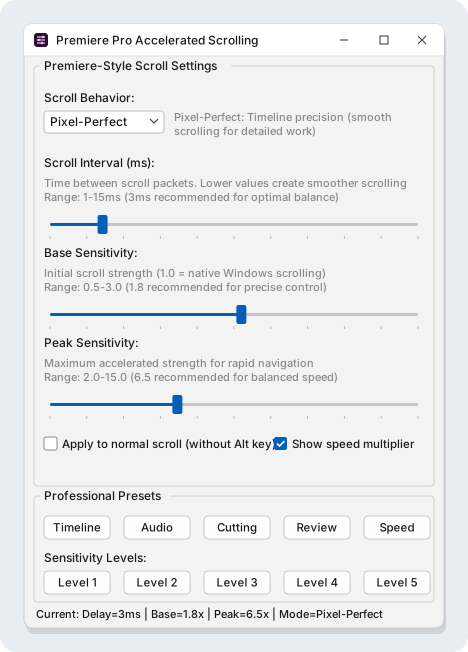
How much time this actually costs you
It is easy to write this off as a small irritation. Run the numbers on your own edit instead. Time yourself performing ten zoom adjustments while the bug is active, then ten after fixing it. Most editors find each mis-zoom costs three to six seconds of recovery, and a dense edit involves a few hundred zoom changes a day.
The larger cost is not the seconds. It is that you stop zooming as often as the edit needs, because zooming has become annoying. You end up trimming at a scale that is slightly too coarse, and you notice the sloppy cut on the second pass.
Frequently asked questions
Why does it work if I scroll very slowly?
Because slow scrolling sends one event instead of a burst. You are manually doing the accumulation that Premiere should be doing for you.
Is this fixed in the latest version?
Not as of the current release. Adobe forum threads on this behaviour are still active, and the workarounds people post are all input side rather than application side.
Does the same thing happen in After Effects or DaVinci Resolve?
After Effects handles the timeline zoom differently and is much less affected. Resolve accumulates scroll deltas properly, which is why editors who switch often notice the difference immediately and assume Resolve is simply smoother.
I use a trackpad. Why do I not see this?
Trackpads send pixel precise scroll data that Premiere maps differently. The problem is concentrated on ratchet and free spin mouse wheels.
Will turning off SmartShift make my mouse worse elsewhere?
Only inside the application profile you set it on. That is the reason to use a per application profile rather than changing the global setting.
If none of this works
Check whether the zoom misbehaves in a brand new project with a single clip. If a fresh project is fine and one specific project is not, you are looking at a different problem, usually a corrupt sequence or an extremely long timeline with thousands of clips. In that case, duplicate the sequence, delete the duplicate's contents in halves, and find the range that triggers it.
If you want the wider argument about why timeline navigation in Premiere has stayed rough for this long, we wrote about that separately in why Premiere Pro timeline scrolling is so bad.