Make a grid overlay for any design app
Set the rows, columns and spacing, watch it update, then export the grid as a transparent PNG or SVG you can drop over any canvas
Runs in your browser, nothing uploaded
Canvas
What this grid generator does
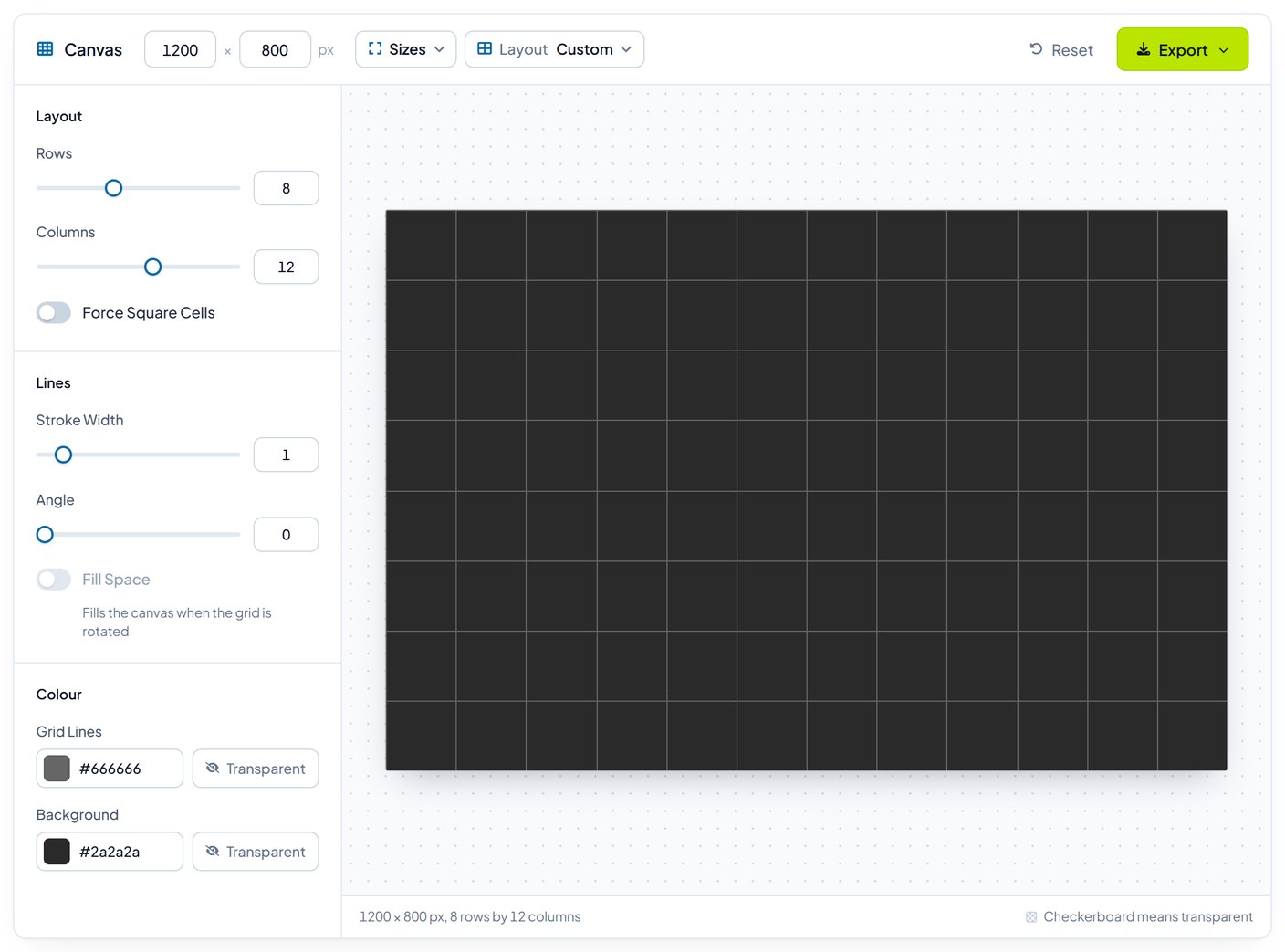
Grid Maker draws a rectangular grid to your exact row and column count and exports it as a transparent PNG or an SVG. It runs in your browser, so nothing is uploaded and there is no account to create. The typical use is producing an overlay you can drop on top of a canvas in Figma, Photoshop, After Effects, or Premiere Pro to keep elements aligned.
How to use it
- Set the number of rows and columns. The preview updates as you type.
- Turn on Force Square Cells if you want a true grid rather than one stretched to the canvas ratio. With it off, cells stretch to fill whatever size you pick.
- Set the stroke width. One or two pixels reads clearly on a 1080p canvas. Anything above four starts to obscure the artwork underneath.
- Use Angle for a diagonal or isometric grid. Thirty degrees is the usual starting point for isometric work.
- Pick your line and background colours, or leave both transparent to get an overlay you can recolour later.
- Choose a canvas size, then export. The preset sizes cover the common cases, and Custom takes any dimensions you need.
Choosing a canvas size
| Size | Use it for |
|---|---|
| 1920 x 1080 | Video timelines, presentation decks, desktop mockups |
| 1080 x 1080 | Square social posts and carousel frames |
| 1200 x 630 | Open Graph and link preview images |
| 800 x 600 | Quick reference overlays and thumbnails |
| Custom | Print work, banners, anything at an unusual ratio |
Which preset to start from
The presets exist because most grid work falls into a handful of shapes. A 3x3 is the rule of thirds, which is what you want for composition and framing. A 2x2 is enough for simple quadrant layouts. A 5x5 gives finer alignment control without becoming visually noisy. The 2x6 and 6x2 presets suit wide banners and tall mobile layouts respectively, and 3x4 matches the card grids common in product listings.
If none of them fit, start from the closest one and adjust. Changing rows and columns does not reset your colour or stroke settings.
Transparent PNG or SVG
Export a transparent PNG when you want to drop the grid straight onto a layer and be done. It is the faster option and works everywhere.
Export SVG when you may need to change the grid later. An SVG stays sharp at any zoom level and its stroke colour and width can be edited afterwards in a vector editor or directly in the file. For print work, or for anything that will be scaled up, SVG is the safer choice.
Common problems
The lines look blurry
This usually means the stroke width is an odd number of pixels and the line is landing between two pixels. Try a two pixel stroke, or export at twice your target size and scale down.
The cells are not square
Force Square Cells is off, so cells are stretching to fill the canvas. Turn it on, or pick a canvas size whose ratio matches your row to column ratio.
The exported PNG has a white background
Transparent Background needs to be enabled before you export. If a colour is selected, that colour is baked into the file.
The grid does not line up with my layout
Check that your canvas size here matches the artboard you are overlaying. A grid built at 1920 x 1080 and placed on a 1440 x 900 artboard will be rescaled and the lines will drift.
Frequently asked questions
Is Grid Maker free?
Yes, with no account and no limit on exports.
Are my grids uploaded anywhere?
No. The grid is drawn in your browser and the export is generated on your own machine. Nothing is sent to us.
Can I use the exported grids commercially?
Yes. A grid of straight lines is not a copyrightable design, and we make no claim over what you export.
Does it work on mobile?
It runs on a phone, but the controls are dense and the preview is small. A larger screen is easier.
Can I make an isometric grid?
Set the Angle control to 30 degrees for a standard isometric look. For a true isometric grid you will want to export two grids at plus and minus 30 degrees and layer them.