
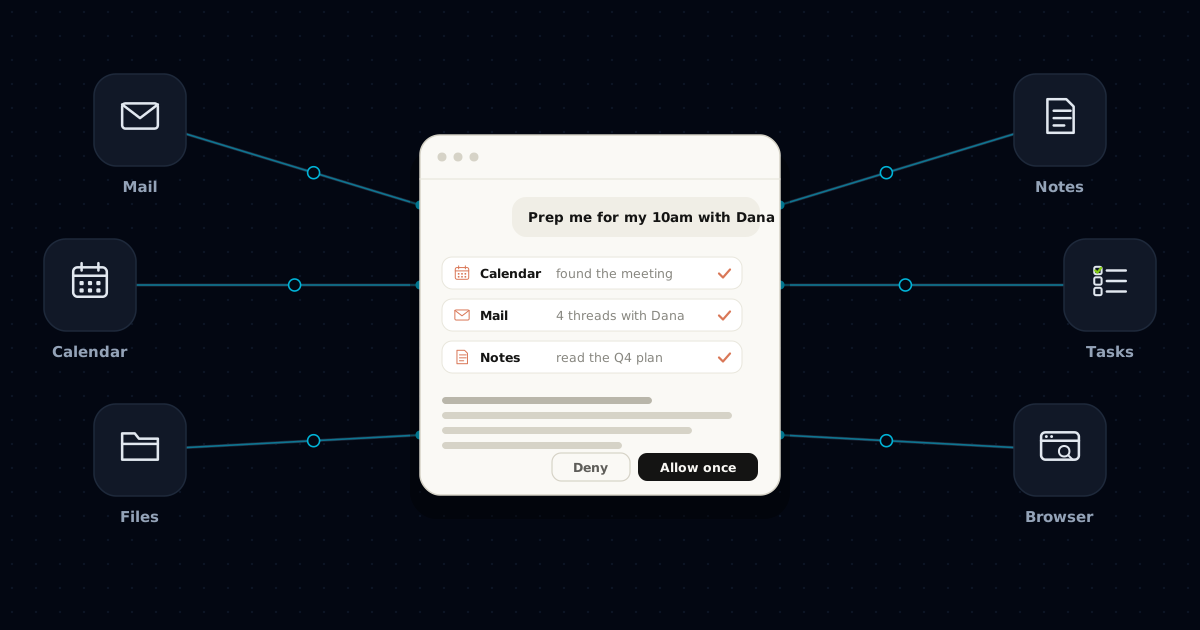
Ask an AI to get you ready for tomorrow's meeting and you get a tidy template with blanks where the facts should be. It has no way to see your calendar, the email thread with the client, or the notes from the last call, so it writes around the gaps. Pasting all three in works for one meeting and is a chore by the third. What closes the gap is a way for the app to go and fetch those things itself, and the standard way of doing that is called MCP.
I put this off for longer than I should have, mostly because the name sounds like plumbing, which it is. Once you see the mechanism it stops being mysterious. And the interesting part turned out to be less about any single server than about what happens when several of them are plugged into the same chat.
What MCP actually does
MCP stands for Model Context Protocol. Anthropic published it as an open standard in November 2024, and OpenAI, Google and Microsoft have since built support for it into their own products.
An MCP server is a small program that sits in front of one tool, such as your calendar, a folder of files or a web browser, and describes what that tool can do in a form an AI app can read. The description is a list of actions, each with a name and a sentence explaining it: search events, read a page, create a task. The app passes that list to the model along with your message. When the model's reply contains a request to use one of those actions, the app runs it through the server, and whatever comes back is added to the conversation as text the model reads on its next turn.
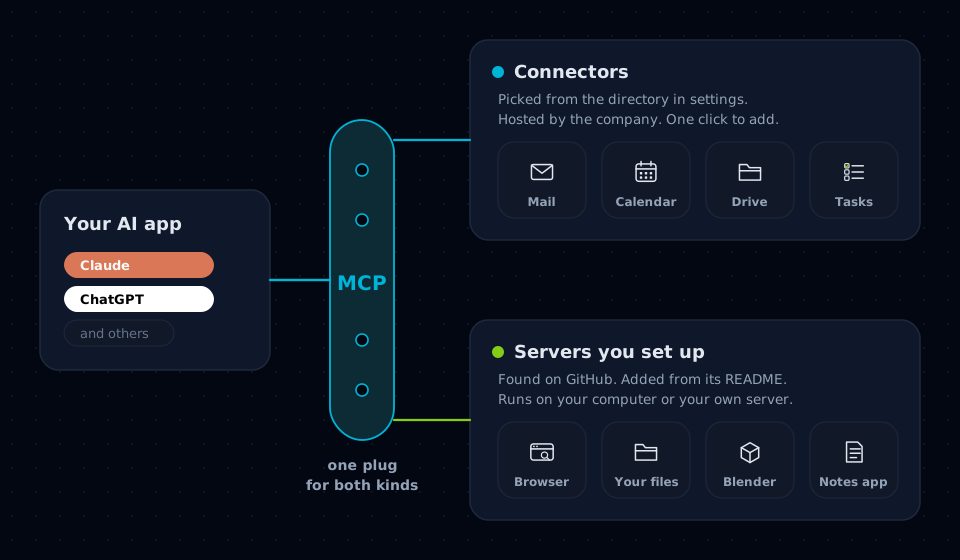
The closest physical thing I can think of is a wall socket. The socket does not care whether you plug in a kettle or a lamp, and the lamp does not care which house it is in. MCP is the shape of the socket. Every app that speaks it can use every server that speaks it, which is why a server built by one company works in another company's chat app.
Which is not the same as the model knowing your calendar. Nothing is learned and nothing is kept. In that conversation, it reads what the server returned, and that is all it has.
Connectors are MCP servers someone else set up
In Claude, the word you will see in the settings is connectors, not MCP. Open the connector directory, pick a service, sign in to it, and it is available in your chats. Behind every one of those entries is an MCP server, run by the company that makes the tool, packaged so that adding it is a click and a sign-in rather than an installation. ChatGPT calls the same idea connectors and apps, and its custom ones speak MCP as well.
There are two other doors into the same room. If someone gives you the web address of an MCP server, Claude lets you add it as a custom connector on its paid plans at the time of writing. And the Claude desktop app has extensions, which are servers packaged to run on your own computer, installed the same way you would install any app.
| Connector from the directory | Server you set up yourself | |
|---|---|---|
| Where it runs | On the company's servers | Usually on your own computer |
| How you add it | Click, sign in, approve | A desktop extension, or the steps in its README |
| Who keeps it working | The company that makes the tool | Whoever maintains the repository, and you |
| What it can reach | Your account in that one service | Whatever you point it at, files and apps included |
| Good for | Mail, calendars, documents, trackers | Your files, a browser, desktop apps, niche tools |
Why several at once matters more than any one
One connector on its own is a convenience. You ask what is on your calendar and it tells you. The change comes when one request can read from several places in a single turn, because the reply is then built from all of them together rather than from whatever you remembered to paste.
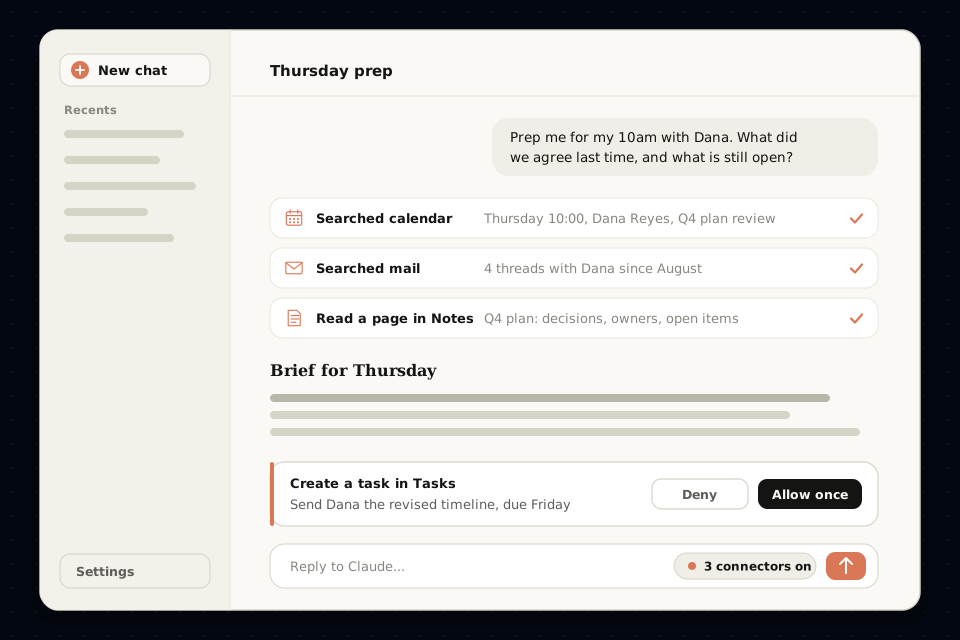
Look at what happened there. The calendar supplied the time and the attendee. The mail search supplied what was agreed. The notes page supplied what is still open. None of those alone answers the question, and the reply that does answer it is assembled from all three in the conversation, with a proposed next step that waits for a yes.
That is the move that lets one person run something that used to need a few. A few of the patterns I keep coming back to:
- Before a call, a brief built from the calendar entry, the email thread and the last set of notes, with the open questions at the top.
- After a call, a follow-up email drafted from your notes, and the action items created in your task tracker, each waiting for your approval.
- For a piece of writing, research read in the browser, a draft in your documents, and a task to review it on Friday.
- For a design handoff, the layout read from the design file and checked against the brief in your documents before anything is built.
The copying between apps was never the part of the job that needed you. With the tools connected, what is left is deciding what should happen and checking that it did, and that is the part that does.
This is a tangent but it is the bit that made the whole thing click for me. The list of actions a server offers is just text. The model picks an action because its name and description fit your request, so a server with vague descriptions gets used at the wrong moment, and a server with ten near identical actions gets confused for the same reason a person would. Good servers have short, plain descriptions. When one keeps reaching for the wrong tool, that is usually where the problem is. The same limit on how much fits in one conversation applies here too, which I went into in the post on documents that are too long: every result a tool sends back takes up room.
Switch on the connectors you already use
Start with the tools your work already lives in. Menus get renamed often, so if a label below has moved, look for Connectors, Integrations or Apps.
- Open the connector settings. In Claude, that is Settings, then Connectors, where you can browse the directory.
- Pick the places your work lives. Usually your mail, your calendar and wherever your documents are kept, then your task tracker. Skip anything you would not miss.
- Connect and sign in. A window from that service asks you to approve access to your account. Read what it is asking for before you agree, because that is exactly what the chat will be able to do.
- Check it is switched on for the chat. In a new conversation, open the tools menu beside the message box and make sure the connectors you want are turned on for this chat.
- Ask something that only reads. What is on my calendar on Thursday, or find the last email from a named client. If that comes back right, the connection works.
- Keep the changes on a leash. Leave anything that sends, deletes, edits or books set to ask you each time. One click to approve is cheap compared with undoing an email.
Whatever a tool returns is read as part of the conversation, and that includes text you did not write. An email, a shared document or a web page can contain instructions aimed at the AI, and the model has no reliable way to tell them apart from yours. So be wary of a chat that can both read things other people sent you and act on your behalf, such as sending mail or moving money. Keep approvals on for actions, and switch off the connectors a chat does not need. I learned the second half of that the slow way: with everything switched on at once, the right tool was picked noticeably less often, because the model was choosing from a far longer menu.
Servers worth setting up yourself
Everything in this section lives on GitHub rather than in the connector directory, mostly because these run on your own computer, where a company cannot host them for you. Setting one up does not mean writing code. Some come as desktop extensions you install with a click. The rest have a README with the exact steps, and following that page carefully is the whole job. Before you install anything, look at when it was last updated, skim the open issues, and check who made it.
- The official reference servers come from the MCP project itself: access to a folder of files, a git repository, fetching web pages, a simple memory that lasts between chats, and the time. Start here, because these are the examples everything else is measured against.
- Playwright MCP, from Microsoft, drives a real web browser. It can open a site, click through it, fill in a form and read what is on the page, which matters for the many sites that have no connector at all.
- Desktop Commander gives the chat your files and your computer's terminal. It is one of the most capable servers on this list, which is exactly why it deserves the most care about what you approve.
- The Obsidian server reads and writes a notes vault through Obsidian's Local REST API plugin, so years of notes become something a chat can search.
- Context7 fetches current documentation for software libraries, for anyone building things with AI help who is tired of answers written for last year's version.
- Serena is for coding projects. It finds and edits code by what it means, functions and the places they are used, instead of searching it as plain text.
- Figma Context MCP hands the layout of a Figma file to an AI coding tool, so a design can be built without describing it in words. Figma also has an official connector of its own.
- Blender MCP builds and edits 3D scenes in Blender from a description. It is a community project, not made by Blender.
- Ableton MCP, from the same developer, creates tracks and arranges clips in Ableton Live.
- AWS's servers are official, for anyone whose work runs on Amazon's cloud.
- Awesome MCP Servers is the long list for everything else. It is large and the quality varies a lot, so treat it as a place to find leads rather than a list of recommendations.
If you want to see exactly what a server offers before you trust it, the MCP project makes a tool called Inspector that lists every action a server exposes and lets you try them one at a time. It is more technical than anything else here, but it is the honest way to look behind the label, and I have yet to regret checking.
What this will not do
It is worth being plain about the edges, because they are where the disappointments come from.
- It can only read what the server can reach and you allowed. A connector to one calendar knows nothing about the other one.
- It keeps nothing between chats unless you add a memory server or the app has a memory or projects feature of its own. Each new chat starts from what it can fetch.
- A server on your own computer stops when your computer does. Connecting tools makes a chat more capable; it does not make anything run while you are away.
- It does not make the answer right. The model can still pick the wrong thread or misread a date, so read the proposed action before you approve it. There is more on that in what to do when AI is confidently wrong.
- Connections expire. When a sign-in lapses, the connector fails until you reconnect it, usually with a message that says so.
- Not every tool has a server, and some only offer one on their paid plans. A browser server covers some of the gap, slowly.
Frequently asked questions
Is MCP only for Claude?
No. Anthropic published it as an open standard, and ChatGPT and other AI apps support it too. A server written for one of them usually works with the others, because they all speak the same protocol. What differs is where each app keeps the setting and which plans include it.
Are connectors and MCP the same thing?
A connector is an MCP server that a company hosts and lists in the app's directory, so you can add it with a click and a sign-in. Underneath it is the same protocol as a server you install yourself. The difference is who runs it and who keeps it working.
Do I need to know how to code?
Not for connectors. For servers from GitHub it helps to be comfortable following a README carefully, and more of them now come as one-click desktop extensions. If a README asks you to edit a settings file, it will give you the exact text to paste.
Is it safe to connect my email?
It is as safe as the access you grant and the approvals you keep. Prefer the official connector over an unknown repository for anything sensitive, read the permission screen when you sign in, and leave sending, deleting and editing set to ask you every time.
How many should I connect?
Start with the tools your work actually lives in, usually mail, calendar and wherever your documents are, and add others when a real task needs them. Switch on only what a chat needs, because every connected tool adds its list of actions to the conversation.
Does any of this cost money?
MCP itself is free and open. Whether you can add connectors, or your own servers, depends on the plan of the AI app you use, and some servers call paid services such as a search or cloud provider. The tool you connect still needs its own account.
How this was put together: the GitHub repositories above were checked on 3 October 2026, and every one had been updated within the previous five weeks. The menu names are as they appeared then, and both will change. There is no code in this post on purpose. Each server documents its own setup, and that page, not a summary of it, is the one to follow.