
You have a folder of password protected PDFs. Bank statements for the year, a run of invoices, a set of signed contracts. They all open with the same password, you know it, and you need them without the prompt. Doing that one file at a time is the kind of task that is not hard, just long, and every minute of it is spent typing something you already know.
There are four ways to do this and they trade off differently. I will go through them, then show you the one I built and exactly what it does, because I think you should know what a tool is doing to your documents before you hand them over.
The four options, honestly
Adobe Acrobat Pro. The Action Wizard handles this properly. Build an action, set security to none, point it at a folder. It is the most capable route and it costs a subscription, which is a lot to pay if this is a thing you do twice a year.
qpdf. A free command line tool, and genuinely good. qpdf --password=yourpassword --decrypt in.pdf out.pdf, wrapped in a loop for a folder. If a terminal does not bother you this is probably the best answer, and I would rather tell you that than pretend otherwise.
Online bulk removers. Fast and free, and the files go to a server. So does the password, because the server cannot decrypt without it. For holiday photos, fine. For the bank statements this task usually involves, you are trusting a retention policy you cannot read and cannot verify.
Something that runs in the browser. Which is the gap I built into, because the tools that keep your files local mostly do one at a time, and the tools that do batches mostly want an upload.
What ours looks like
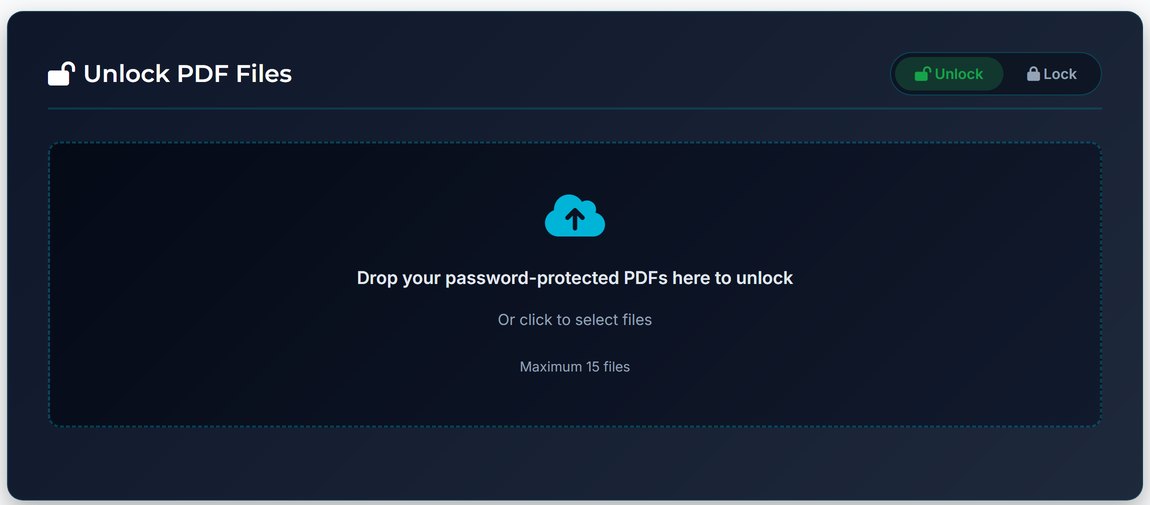
Drop the files in, and the queue takes up to fifteen. There is a mode switch at the top, because the same machinery adds passwords as well as removing them.
Once files are in, each row gets its own password box, and there is a checkbox to use one password for all of them, which is the case this whole task usually is. The counter tells you how many slots are left.
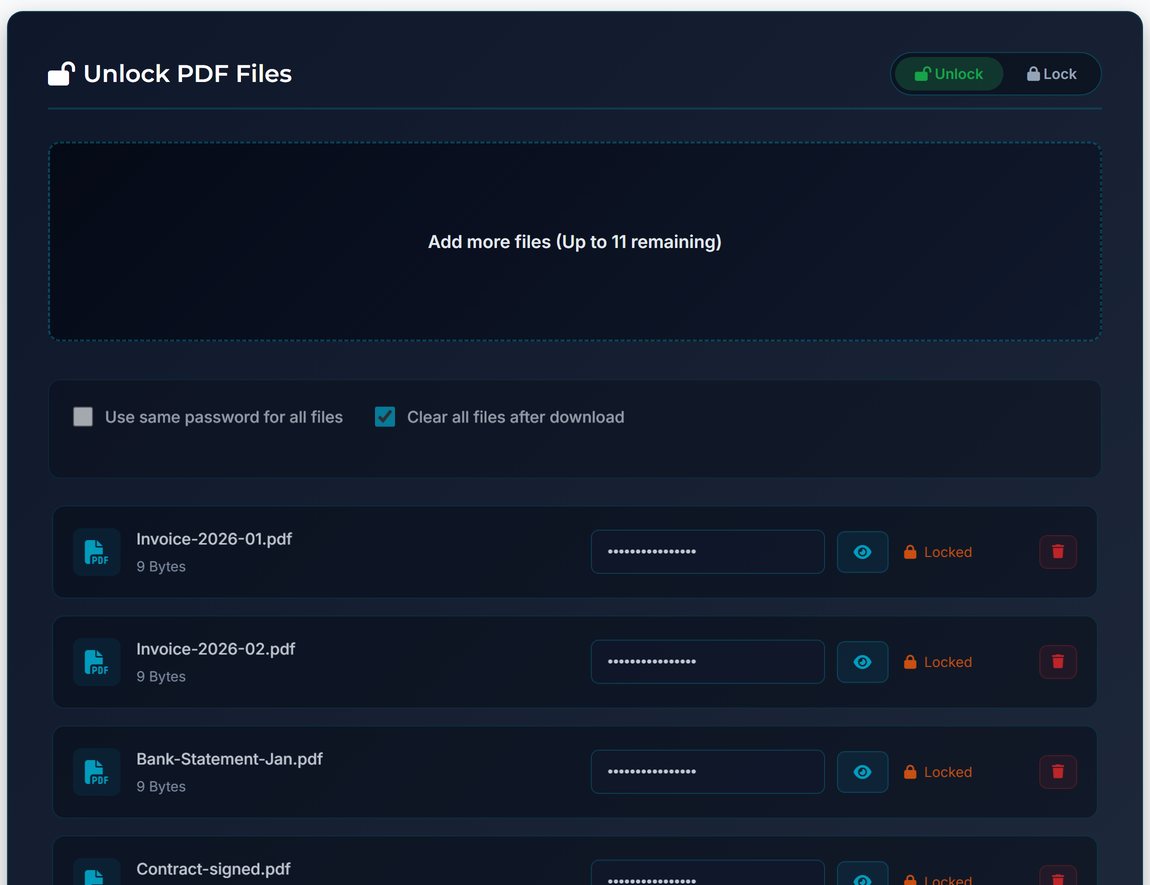
Clear all files after download is on by default. It empties the queue when you are done rather than leaving your documents sitting in a tab you forgot about.
Nothing leaves your machine, and you can check
The page loads Pyodide, which is CPython compiled to WebAssembly, so an actual Python interpreter is running inside your tab. It installs pypdf at runtime and does the work there. Your files are read into memory by JavaScript and handed to that interpreter.
That means there is no upload, and I would rather you verified that than believed me. Open the network tab before you run it and watch what goes out. You will see Pyodide and the library being fetched. You will not see a request carrying your PDF, because there is not one.
The tradeoff is honest: the first run downloads a Python runtime, so it is slower to start than a server tool would be. After that it is local and fast. I would rather pay a few seconds once than send a folder of bank statements to somebody else's computer.
Why it asks for the password
Here is the part that confuses people, and it is worth understanding because it tells you what no tool can do for you.
A PDF has two password slots, and they do unrelated jobs.
The user password decrypts the document. The page content is genuinely encrypted, turned into bytes that mean nothing without a key derived from that password. No password, no key, nothing to read.
The owner password does not gate content at all. It governs permission flags stored in the file, the ones saying this may not be printed or copied. Those flags are a request to your reader, not cryptography.
The combination that causes all the confusion is an owner password with an empty user password. That file is encrypted, and it also opens instantly for anyone, because an empty password is still a password and every reader tries it first. You get a document you can read but not copy from. When some other site strips the restrictions off one of those without asking you for anything, it is not breaking encryption. It is ignoring a flag. The door was already open.
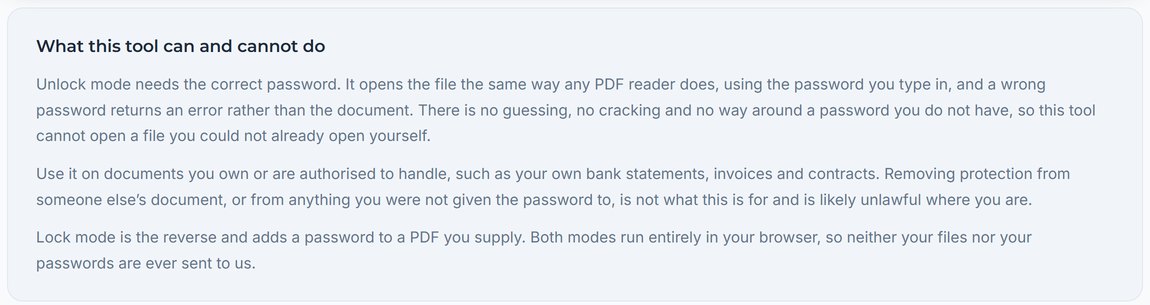
A file with a real user password is a different object. There is no flag to ignore and no key to derive. Which is why our tool says so on its own page rather than implying otherwise.
What it does to your files, in full
The whole operation is about twenty lines of Python. Since the argument of this article is that you should know what a tool does, here it is.
reader = PdfReader(pdf_bytes)

if reader.is_encrypted:
    decrypt_result = reader.decrypt(pdf_password)
    if decrypt_result == 0:
        raise Exception("Incorrect password")

writer = PdfWriter()
for page in reader.pages:
    writer.add_page(page)
Three things worth pulling out.
decrypt returns a number, not true or false, and the number says which password matched. Zero is neither, one is the user password, two is the owner password. We only test for zero, and the useful consequence is that if you hold the owner password rather than the user password, this still works.
A wrong password returns zero and the file errors out. There is no partial success and no fallback, because there is nowhere for the code to go without the key.
And the last two lines are the ones people find surprising. Nothing is removed from your file. A new document is created, the decrypted pages are copied into it, and that new document is what you download. It was never encrypted, because nobody ever encrypted it. Your original is untouched on disk, which is also why a failed attempt cannot damage it.
Lock mode is the same pipeline with one extra line, writer.encrypt(password) before saving. Same machinery, opposite direction.
What it will not do
It will not open a file whose password you do not have. Not slowly, not with effort, not at all. If you have genuinely lost it, what you need is a recovery tool running a wordlist, which works on short and common passwords and does not work on anything else. That is a lottery, not a feature, and it is a different category of software.
It will not process a folder recursively, because a browser cannot walk your disk. Fifteen at a time, selected by you.
And it is for documents you own or are authorised to handle. A password you were not given is not an obstacle to route around.
Do the batch
Up to fifteen files, one password box for all of them, nothing uploaded. Open the network tab while you use it and watch for yourself.
Open the PDF Locker and UnlockerFrequently asked questions
How many PDFs can I unlock at once?
Fifteen per batch. The limit exists because everything runs in your browser tab rather than on a server, and a much larger batch starts competing with the memory the rest of your browser wants. For a bigger job, run it in a few passes.
Do all the files need the same password?
No. There is a checkbox for using one password across the batch, which covers most cases, and if you leave it off then each file gets its own box. A mixed batch works, and a file that fails does not stop the others.
Are my files or my password uploaded anywhere?
No. The work is done by a Python interpreter running inside your browser through WebAssembly, so the file never leaves the tab. Rather than trust that, open your browser network tab before you run it. You will see the runtime and the library being fetched and nothing carrying your document.
Can it open a PDF if I have lost the password?
No, and neither can anything else that is being straight with you. If the file has a real user password there is no key without it and the page content stays encrypted bytes. Tools advertising recovery are guessing from a wordlist, which works on weak passwords and fails on the rest.
Does it change my original files?
No. Each file is read, decrypted in memory, and its pages copied into a new document that was never encrypted. That new document is what downloads. The originals on your disk are untouched, so a failed attempt cannot damage them.
How does this compare to Acrobat or qpdf?
Acrobat Pro is more capable and costs a subscription. qpdf is free, does the same job well and needs a terminal. This is the middle option: no install, no account, no upload, and a limit of fifteen files a run. If you are comfortable on a command line, qpdf is a perfectly good answer and I would not argue with it.
Everything above assumes documents you own or are authorised to handle. Removing protection from someone else's document is likely unlawful where you are.