

You drag across a paragraph and nothing highlights. Or you right click and the menu never appears. Or you copy something, paste it, and get a block of text you never selected with a "read more at" link stapled to the end.
Worth saying up front what this is and is not. It is about a page you can already read, sitting open in front of you, where a script is stopping you lifting a sentence out of it to quote or to save for later. Nothing here gets past a login or a paywall, and none of these methods can reach a page you were not able to open in the first place. What you may then do with the text is a separate question with a real answer, and it has its own section further down.
The fastest fix is reader mode. Press F9 in Firefox, or click the reader icon in the address bar in Safari and Edge. That alone solves it on most sites, in about two seconds, with no extension.
If reader mode does not appear or the page is not an article, work down the list below. Each method handles a different kind of block, and the last two work when everything else fails.
Why the block exists and why it barely works
Worth thirty seconds of your time, because it tells you which method to reach for.
By the time you see a page, your browser has already downloaded the entire text. The copy block is JavaScript or CSS running afterwards, on your machine, asking your browser politely not to let you select things. Common implementations are a contextmenu event that cancels the right click, a copy event that empties the clipboard or appends attribution, and a CSS rule of user-select: none.
All three run after the text arrived. None of them removes it. That is why every method below works: they either stop the script from running, or read the text from somewhere the script never touched.
The exception is text that is not text. If the content is a photograph of a document, a scanned PDF, or a canvas element drawing glyphs, there is nothing to select and you need optical character recognition instead. More on that at the end.
Method 1: reader mode
Reader mode strips the page down to its article content and rebuilds it in a clean container the site does not control. The blocking script is gone along with everything else.
- Firefox: press F9, or click the page icon in the address bar.
- Safari: click the reader icon on the left of the address bar, or press Control, Command and R.
- Edge: click the immersive reader icon, or press F9.
- Chrome: open the three dot menu and look for Cast, save and share, then Distill page. Chrome hides it and it is less reliable than the others.
Reader mode only offers itself on pages it recognises as articles. On product pages, documentation, and forums the icon often will not appear at all. Move to method 2.
Method 2: print preview
Press Control and P, or Command and P on a Mac. The print preview rebuilds the page using the site's print stylesheet, which almost never carries the copy blocking rules.
From there you have two options. Select the text directly in the preview pane if your browser allows it, or set the destination to Save as PDF, save the file, and copy from the PDF.
This method has a useful side effect on long pages: the print layout usually removes navigation, sidebars, and related article blocks for you, so what you copy is closer to the actual content.
Method 3: view source or inspect
Slower, but it works on anything and needs no extension.
Press Control and U (Command and Option and U on Mac) to open the raw HTML. Then press Control and F to find a distinctive phrase from the passage you want. The text is sitting there in plain form, surrounded by tags.
For pages built by JavaScript, view source shows you the empty shell rather than the content. In that case press F12 to open developer tools, choose the Elements tab, and use Control and Shift and C to click directly on the paragraph you want. The Elements panel shows the live page after scripts have run, so the text will be there. Right click the element and choose Copy, then Copy element or Copy outerHTML.
You will get HTML tags mixed in. For a paragraph or two that is easy to clean by hand. For a whole page it is miserable, which is what method 6 is for.
Method 4: turn off JavaScript for that one site
If the block is a script, removing the script removes the block. Browsers let you do this per site, so nothing else on the web changes.
In Chrome and Edge: open Settings, then Privacy and security, then Site settings, then JavaScript. Under Not allowed to use JavaScript, click Add and enter the site's address. Reload the page.
In Firefox: type about:config in the address bar, accept the warning, and set javascript.enabled to false. This is global rather than per site, so turn it back on afterwards. The uBlock Origin extension offers a cleaner per site toggle if you already use it.
Two caveats. Many modern sites render their content with JavaScript, so switching it off leaves you with a blank page. And a CSS based block using user-select: none survives, because CSS is not JavaScript. If the page goes blank or the text still will not select, this is not your method.
Method 5: override the CSS rule
For the user-select: none case specifically. Press F12, open the Console tab, paste the following, and press Enter.
document.querySelectorAll('*').forEach(el => {
  el.style.userSelect = 'text';
  el.style.webkitUserSelect = 'text';
});
document.oncontextmenu = null;
document.oncopy = null;
That re-enables selection everywhere on the page, restores the right click menu, and clears the copy handler. It lasts until you reload.
Firefox blocks pasting into the console by default the first time. It will ask you to type allow pasting and press Enter before it accepts the paste.
Method 6: pull the text out of the page entirely
When you need the whole article, or the same content from twenty pages, the manual methods stop being worth it. Our free Website Content Extractor reads a page and returns just the readable text, with navigation, sidebars, cookie banners, and footers already removed. Nothing to install.
Open the Website Content Extractor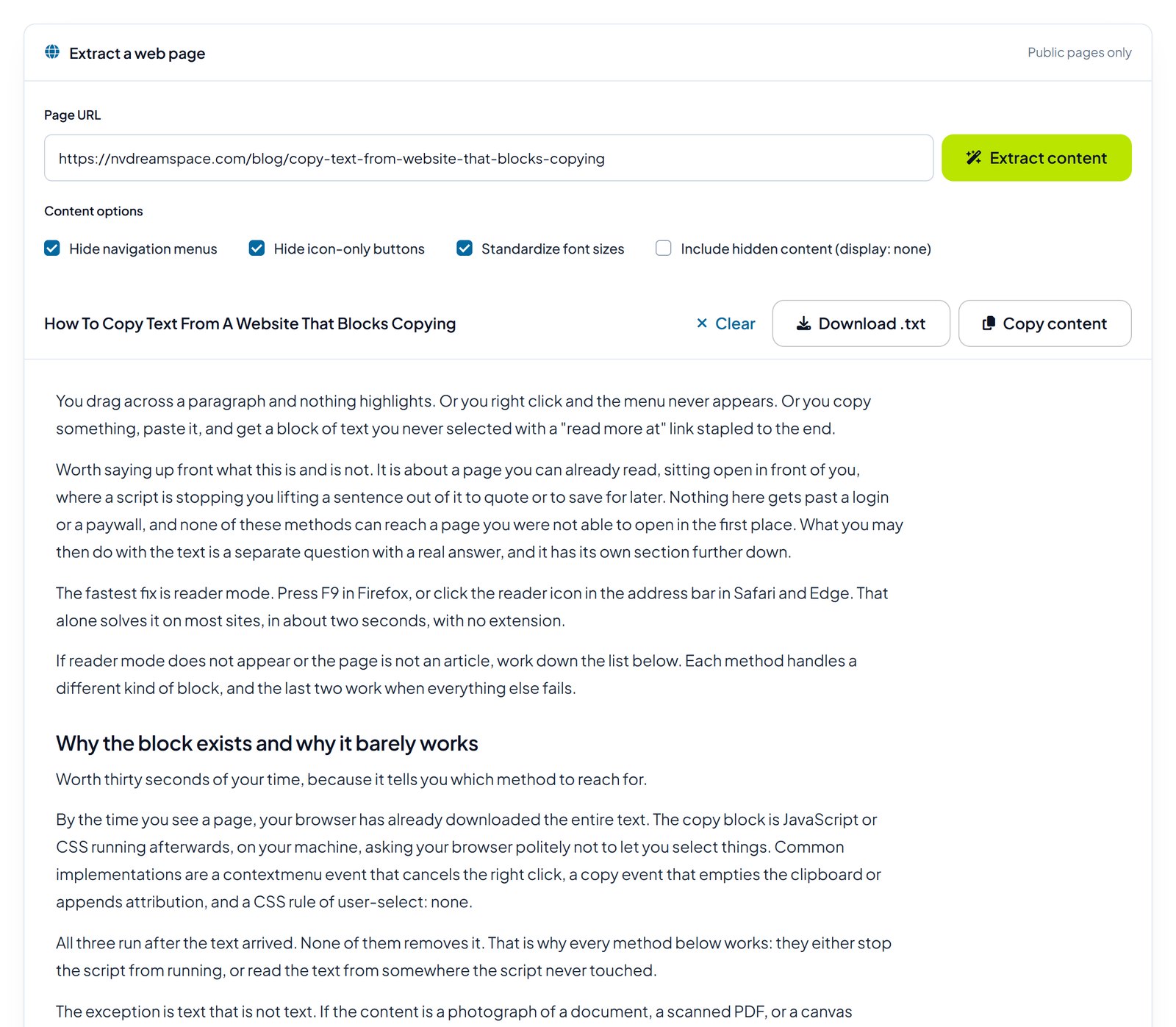
Which method for which situation
| Situation | Use | Why |
|---|---|---|
| A news or blog article, one page | Reader mode | Two seconds, keeps paragraph breaks |
| Reader mode icon does not appear | Print preview | Works on any page type |
| You need one specific paragraph | Inspect element | Precise, no cleanup of surrounding content |
| Text will not highlight at all | Console snippet | Targets the CSS rule directly |
| Copying appends unwanted attribution | Console snippet or reader mode | Both remove the copy event handler |
| Whole page, or many pages | Extractor tool | Manual cleanup does not scale |
| Content is an image or scan | Optical character recognition | There is no text to select |
When the text is not text
Occasionally a site renders content as images specifically to defeat copying, or you are looking at a scanned document. Selection will never work because there is nothing to select.
Take a screenshot and run it through optical character recognition. Windows has this built in through Snipping Tool, which offers a text actions button after you capture. On macOS, Live Text lets you select text directly inside a screenshot or photo in Preview. Google Lens handles it on a phone. Expect errors in unusual fonts, tables, and anything at low resolution, and proofread numbers carefully.
If the content is a PDF rather than a web page, a PDF text extractor will get cleaner results than a screenshot, provided the PDF contains real text and is not itself a scan.
What you are allowed to do with the text
Worth being clear, because "can I" and "may I" are different questions.
Bypassing a copy block is not, on its own, a legal problem in most places. The block is a request made by a script running on your own computer, not an access control, and you already have lawful access to the page. Section 1201 of the US Digital Millennium Copyright Act covers circumventing technological protection measures, and a JavaScript right click handler has generally not been treated as one.
Copyright still applies to what you do afterwards, and that is the part that matters. Quoting a passage with a link and attribution is normal use. Saving an article to read offline or to feed into your own notes is normal use. Republishing someone's article on your own site, or passing their words off as yours, is infringement regardless of how you obtained the text.
If you are collecting content at scale rather than grabbing a paragraph, check the site's terms of service and its robots.txt file first. Those govern automated collection and can create a contractual problem even where copyright does not.
Frequently asked questions
Do I need a browser extension for any of this?
No. Methods 1 through 5 use features already in your browser. Extensions that promise to re-enable right click do the same thing as the console snippet, with the added cost of granting a third party read access to every page you visit.
The site let me copy but pasted extra text I did not select.
That is a copy event handler appending an attribution line. Reader mode removes it, or clear it directly with document.oncopy = null in the console.
Why does Control and A then Control and C sometimes work?
Some blocks only cancel mouse selection and forget about keyboard selection. It costs nothing to try first, and you will be surprised how often it works.
Will any of this get me blocked from the site?
Reading a page in reader mode or print preview is indistinguishable from a normal visit. Repeatedly requesting many pages quickly can trigger rate limiting, which is a reason to slow down rather than a reason not to.
Can I copy text from a PDF that has copying disabled?
If you have the password or the restriction is a permissions flag rather than encryption, yes. That is a different mechanism from a web page block, and our PDF lock and unlock tool covers it for documents you own.
Start with reader mode
Nine times out of ten, F9 ends the problem before you have finished being annoyed by it. Keep the console snippet somewhere you can find it for the stubborn cases, and reach for an extractor when you are dealing with a whole page rather than a paragraph.